

Jinja2 Statements, Expressions, & Filters
When you request a Word document, Ghostwriter opens your selected template file and processes any Jinja2 expressions within the document to create a new document. The new document is saved in memory and sent to you for download. Jinja2 uses statements, expressions, and filters. These equate to lines of code and variables:-
Statement –
{% ... %}- Statements are lines of code like
{% if some_variable %}
- Statements are lines of code like
-
Expression –
{{ ... }}- In general, an expression works like a variable in most cases, like
{{ client.name }}
- In general, an expression works like a variable in most cases, like
-
Filter –
... |filter ...- You can pipe a value into a filter to modify it, like
{{ client.name|title }}
- You can pipe a value into a filter to modify it, like
< and > (e.g., replace the character with %gt;). If you want to check if something is greater or less than a value, use Jinja2’s gt() and lt() tests.
https://jinja.palletsprojects.com/en/stable/templates/#jinja-tests.gt
https://jinja.palletsprojects.com/en/stable/templates/#jinja-tests.lt
You can freely use < or > if you use it inside your report template (not a text field inside Ghostwriter).
The official Jinja2 documentation contains all the information you need to get started using its more advanced features.
There are also various considerations covered in the official Jinja2 documentation, such as whitespace control and escaping.
Template Designer Documentation
All of Ghostwriter’s expressions and statements should be wrapped in curly braces with one space to either side ({{ client.name }}or {% if ... %} ) – unless otherwise noted.
If you do not include the spaces, Jinja2 will not recognize the expression as valid and will ignore it.
If you ever need to include double curly braces or Jinja2 code inside a report and you do not want it to be rendered, you can escape your text in a couple of ways.
One option is the {% raw %}{% endraw %} block. Another is using Jinja2 ‘s “literal variable delimiter” ({{) inside a variable expression (e.g., {{ '{{' }}).
https://jinja.palletsprojects.com/en/3.0.x/templates/#escaping
Using Conditionals
One of the easiest and most powerful things you can do in your templates is leverage conditional statements to control content. For example, you can use anif block to check a value to determine the content or formatting. Conditional blocks are powerful when combined with things like your custom extra fields.
Conditional blocks can be written in a couple of different ways. The simplest will be familiar to anyone who has written a script in a language like Python:
More on
cellbg, creating tables, and other functionality below!Potentially Useful Jinja2 Expressions
These expressions are built into Jinja2 and might be helpful in your Word documents:There are many other expressions and filters available. If you want to do something, there is probably a way to accomplish it with a built-in expression cleanly. You can perform math, logic, string mutations, and more.Check the Jinja2 documentation: https://jinja.palletsprojects.com/en/3.1.x/templates/#expressions
Ghostwriter Expressions
To see what is available for your report, generate the JSON report. Everything in the resulting JSON will be available in a report template. The following table describes the top-level keys:Dates are localized based on your locale configuration in the server settings. The default date format is M d, Y (e.g., June 22, 2021).The
project key has separate values for the day, month, and year the project started and ended. Use these to assemble your own date or date range formats if you need to represent a date differently or only want part of the date.If you do not have a client
short_name value set, Ghostwriter will replace references to client.short_name with the client’s full name.Findings Attributes – HTML & Rich Text Attributes
You write your findings in Ghostwriter’s WYSIWYG editor, where you can style text as you would directly in Word. The WYSIWYG editor uses HTML, so Ghostwriter stores your content as HTML. Let’s say you put the following Jinja2 code in a template:{{ finding.description }} in the template. It’s unlikely you would want that.
Jinja2’s striptags filter can help, but it removes all HTML without preserving new lines. Ghostwriter’s custom strip_html filter will strip the tags and preserve newlines, but the output will still be all plaintext. You must re-apply character and paragraph styles, font changes, and other options. Your evidence files will also appear as text placeholders.
To get what you see in the WYSIWYG editor in your Word document, add _rt (for rich text) to the attribute’s name, use the p tag (see Ghostwriter Tags below). The above example becomes:
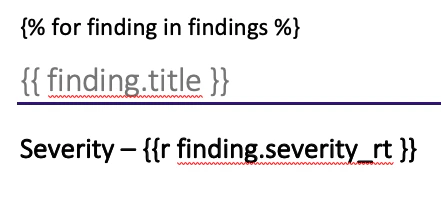
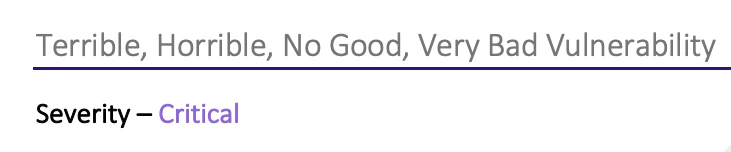
severity_rt attribute. You don’t style this text in the WYSIWYG editor. Ghostwriter creates a rich text version of your severity category that is colored using your configured color code.
The severity_rt attribute only styles the color of the text run so that you can apply a paragraph style to it directly in your Word template. Use it with the r tag (for a run) like so:
Ghostwriter Tags
Several tags used for Word documents are not built into Jinja2. These tags are added after you open an expression or statement (before the space). Example:{{p findings_subdoc }}
The table tags may appear complicated at first. You can create a table with a row for each point of contact using the provided statements, expressions, and tags like this:
Ghostwriter Statements
There are several statements for Word documents that are not built into Jinja2:Ghostwriter Filters
Ghostwriter offers some custom filters you can use to modify report values quickly: The filter collection is under development and will continue to grow.Subdocuments
Subdocuments are like other variables, except they are pre-rendered Word documents. Inserting a subdocument is like copying and pasting content from one document into another. A subdocument can be a small paragraph or a much larger section. Ghostwriter uses subdocuments to translate your WYSIWYG content (e.g., findings) to Office Open XML. Subdocuments are referenced as{{p VARIABLE }}. That variable is automatically replaced with the contents of the subdocument.
Debugging a Template
Ghostwriter uses thejinja2.ext.debug extension to make it easier for you to debug a template. Place a {% debug %} tag somewhere in your template.
The next time you generate a report with that template, Ghostwriter will replace the tag with the template’s available context (the report and project data) and filters.
Also, see Troubleshooting Word Templates for a more in-depth explanation of how to troubleshoot a template that gives you problems.