Data Ingestion
Once Nemesis is running, data first needs to be ingested into the platform. Ingestion into Nemesis can occur in muliple ways, including:- Auto-ingesting data from C2 platorms, including Mythic and Outflank C2.
- Manually uploading files on the “File Upload” page in the Nemesis’s Dashboard UI.
- Using the CLI tool to:
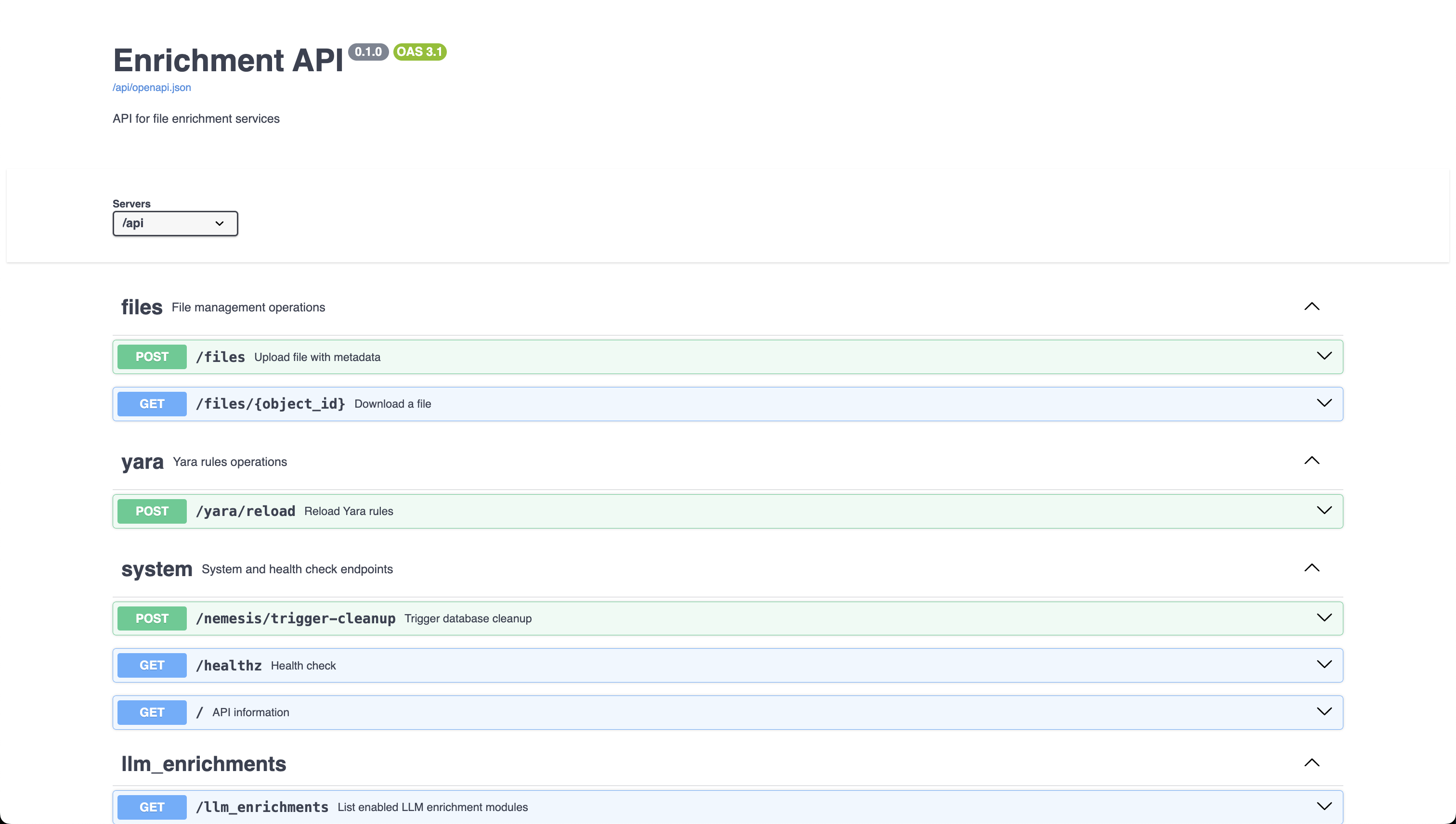
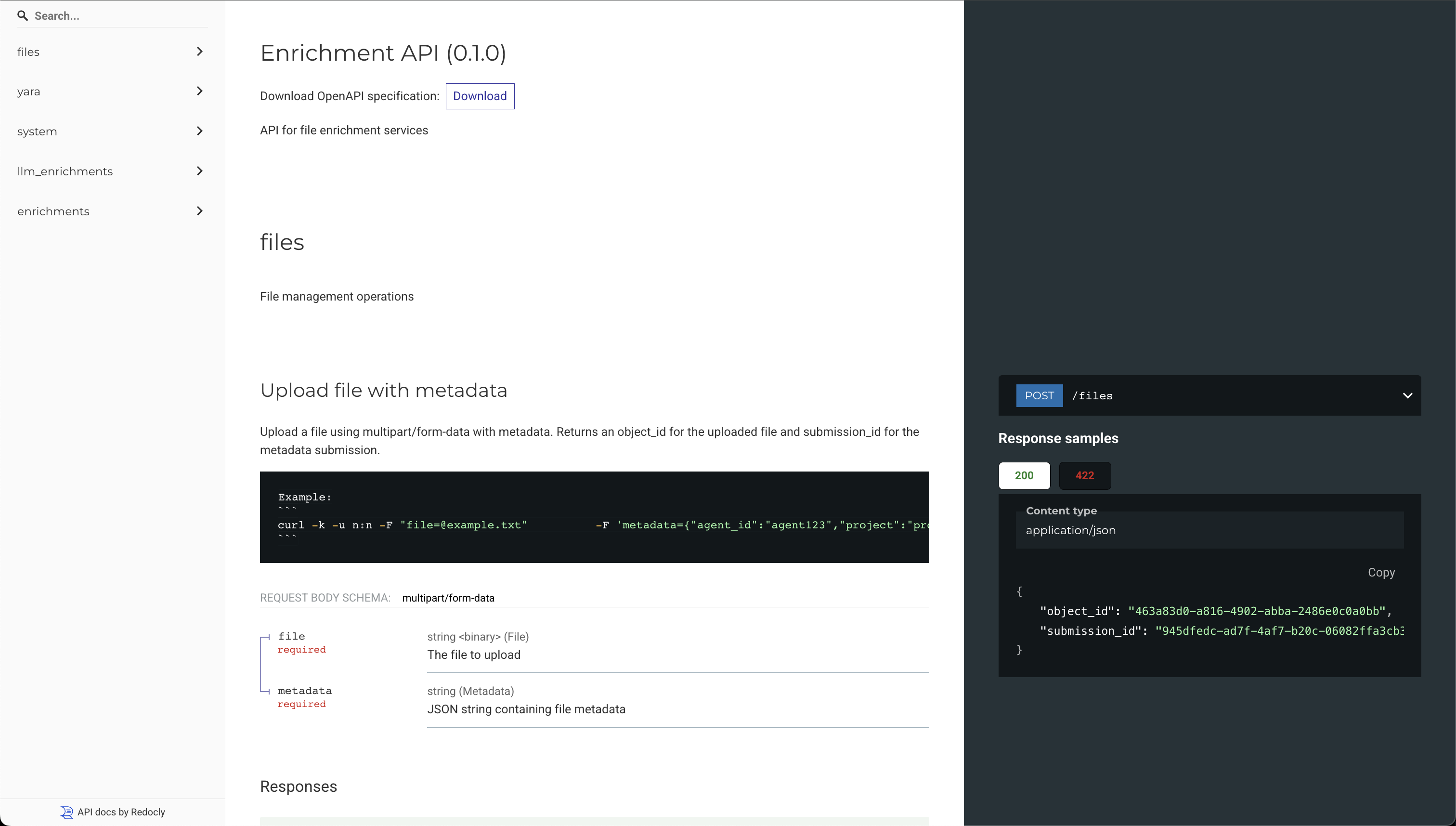
- Writing custom tools to interact with Nemesis’s API.
Nemesis C2 Connector Setup
Nemesis includes connectors for Mythic and Outflank C2 (formerly Stage1). The connectors hook into the C2 platforms and transfer data automatically into Nemesis. The connectors are located in the CLI project. See the CLI documentation for more details on configuration.Nemesis Dashboard
The main method for operators/analysts to interact with Nemesis data is through the Nemesis Dashboard. The dashboard can be accessed athttps://NEMESIS_IP/HOST:7443/. The initial display shows details about the number of processed files and enrichment workflow information:
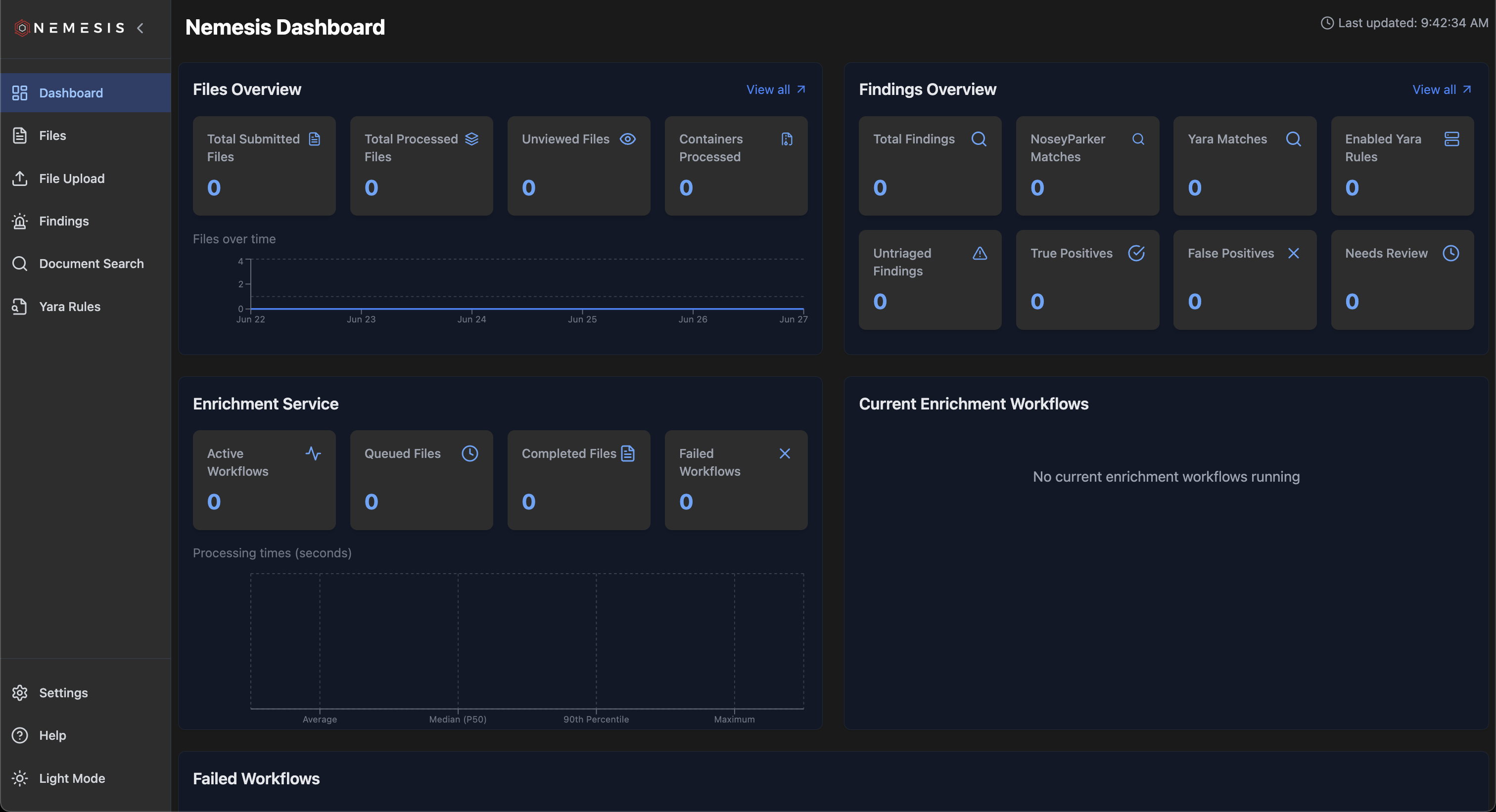
Files
One of the common tasks for the dashboard is file triage, accessible through theFiles page on the left navigation bar:
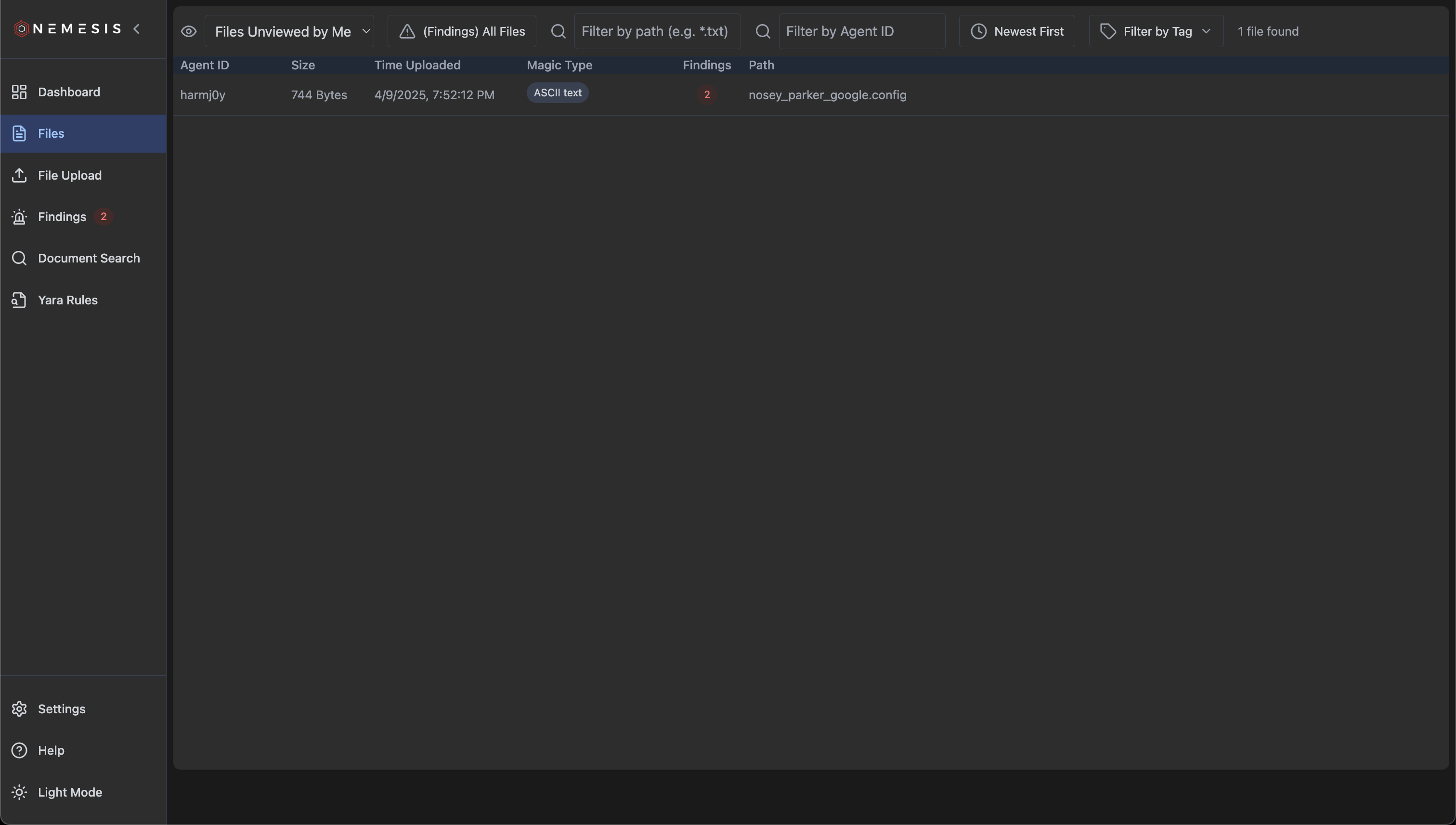
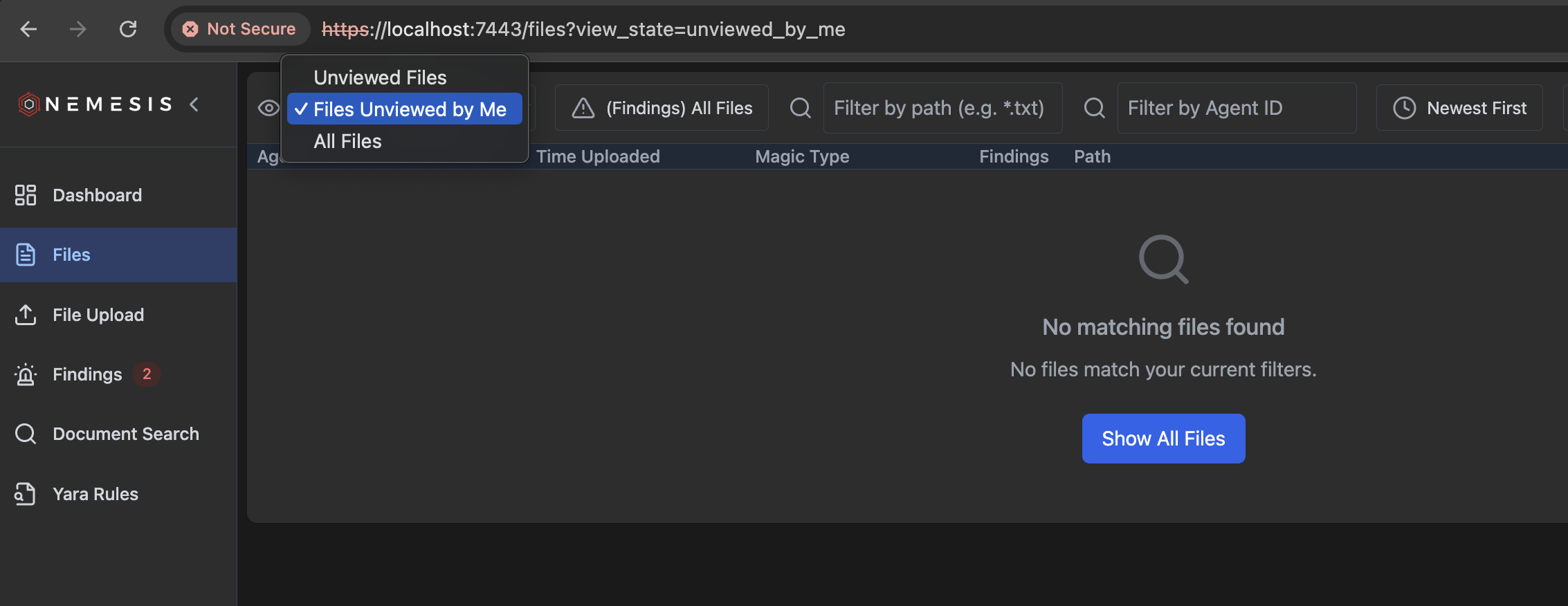
File Triage Mode
In the main files view, typet to enter file triage mode:
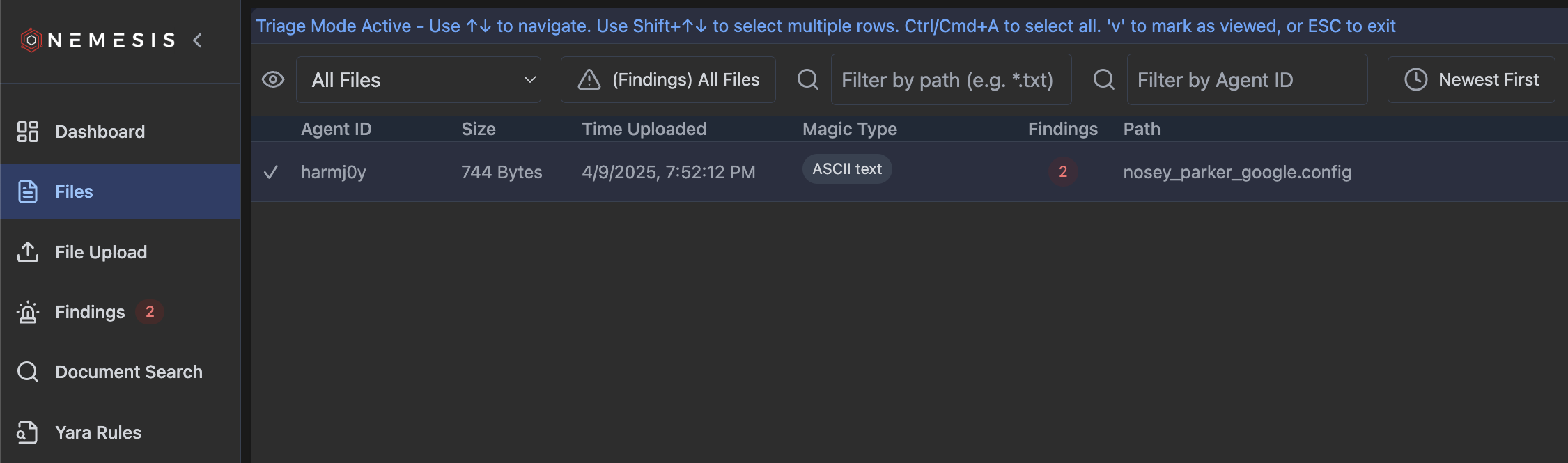
File Details
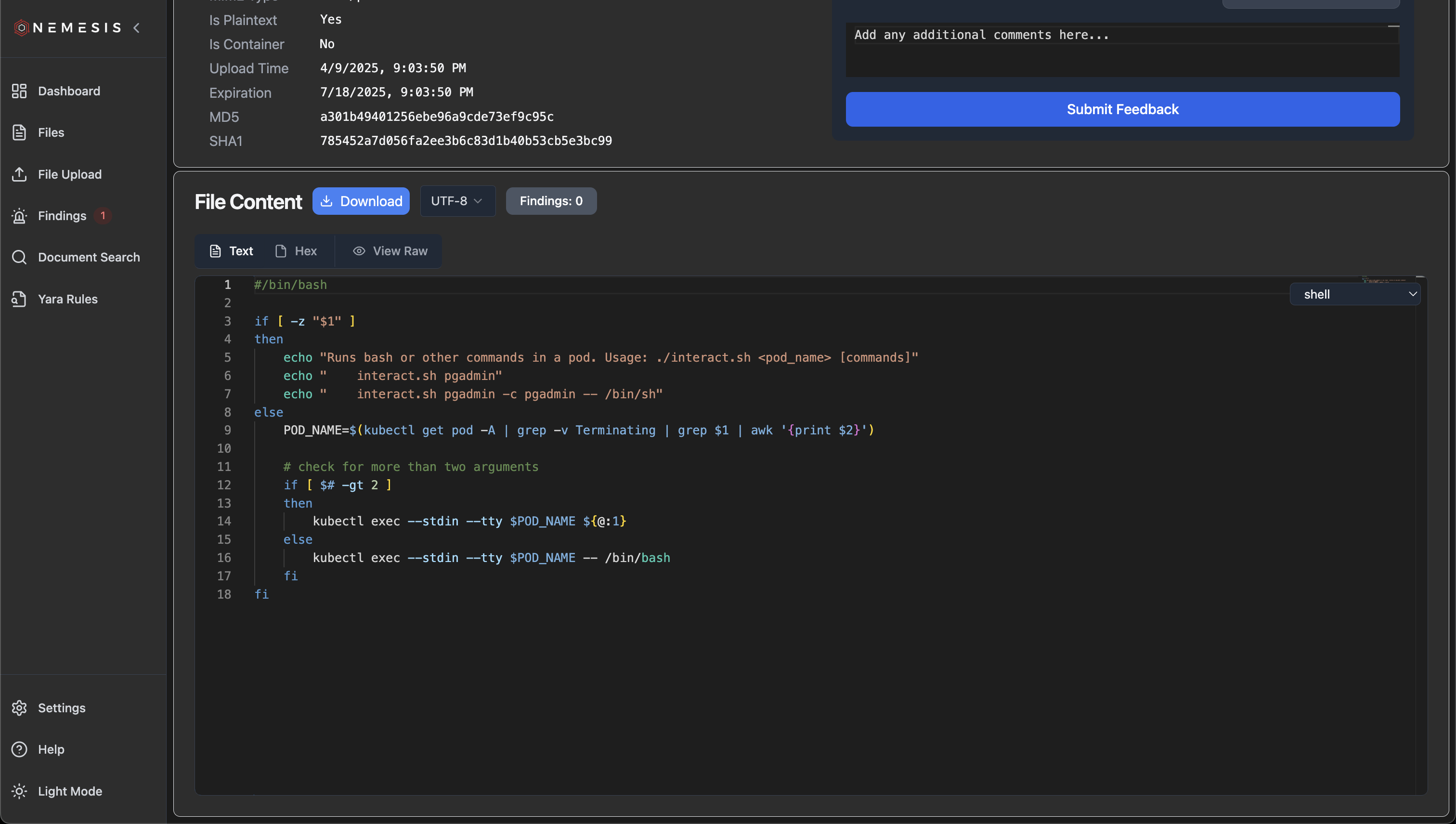
Clicking on a file entry in the “Files” view brings you to a file details view: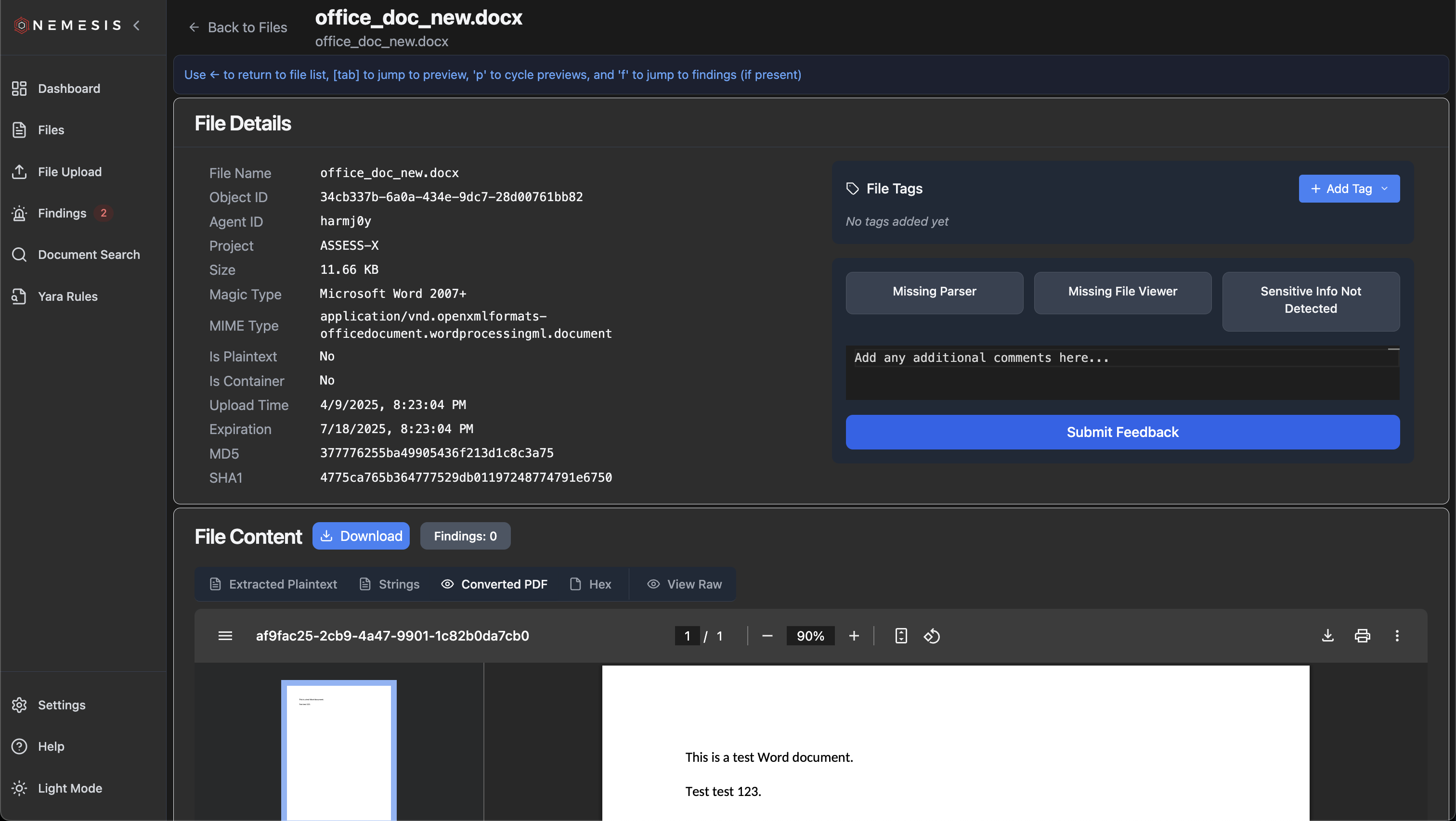
p will cycle between these views:
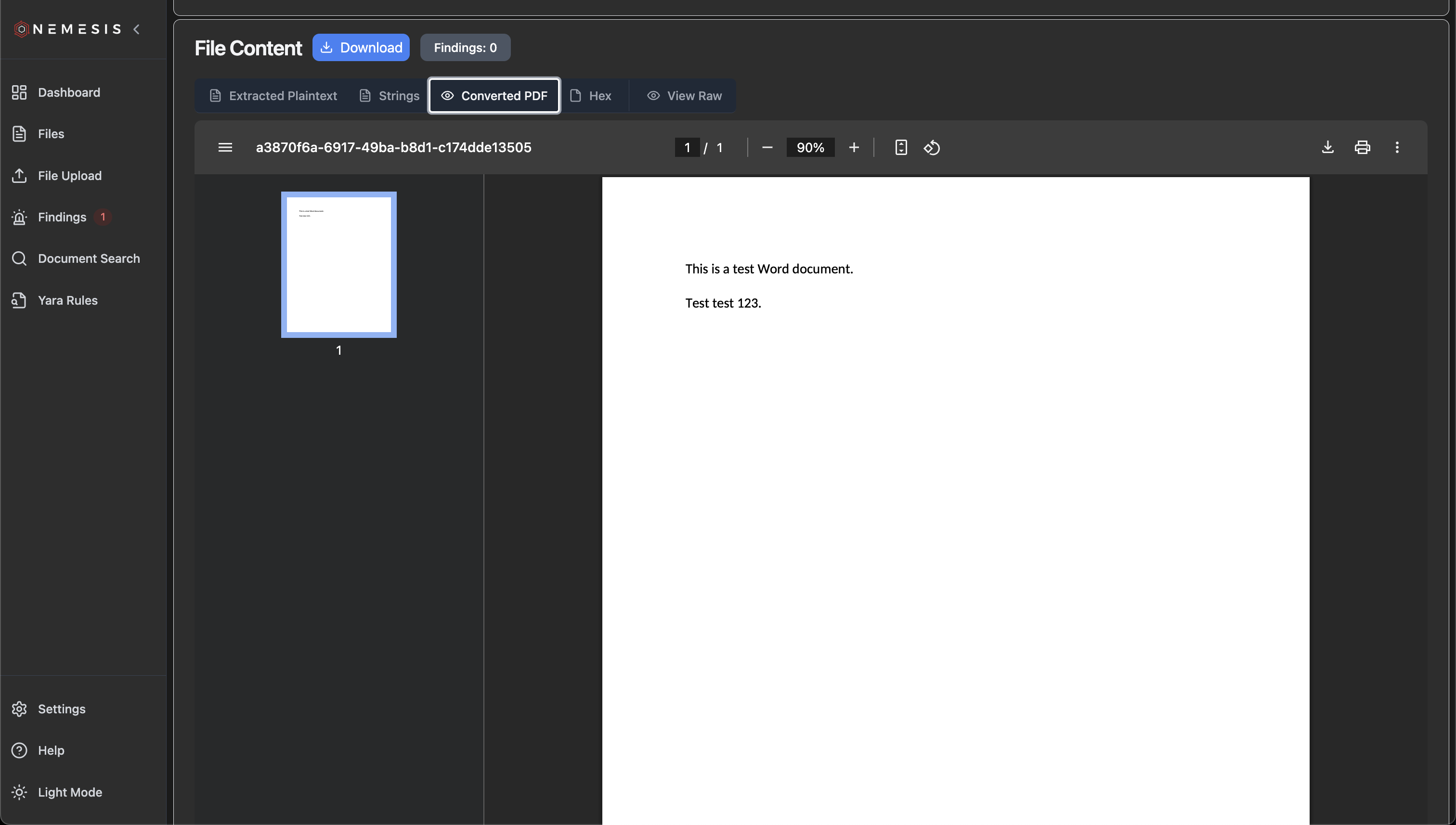
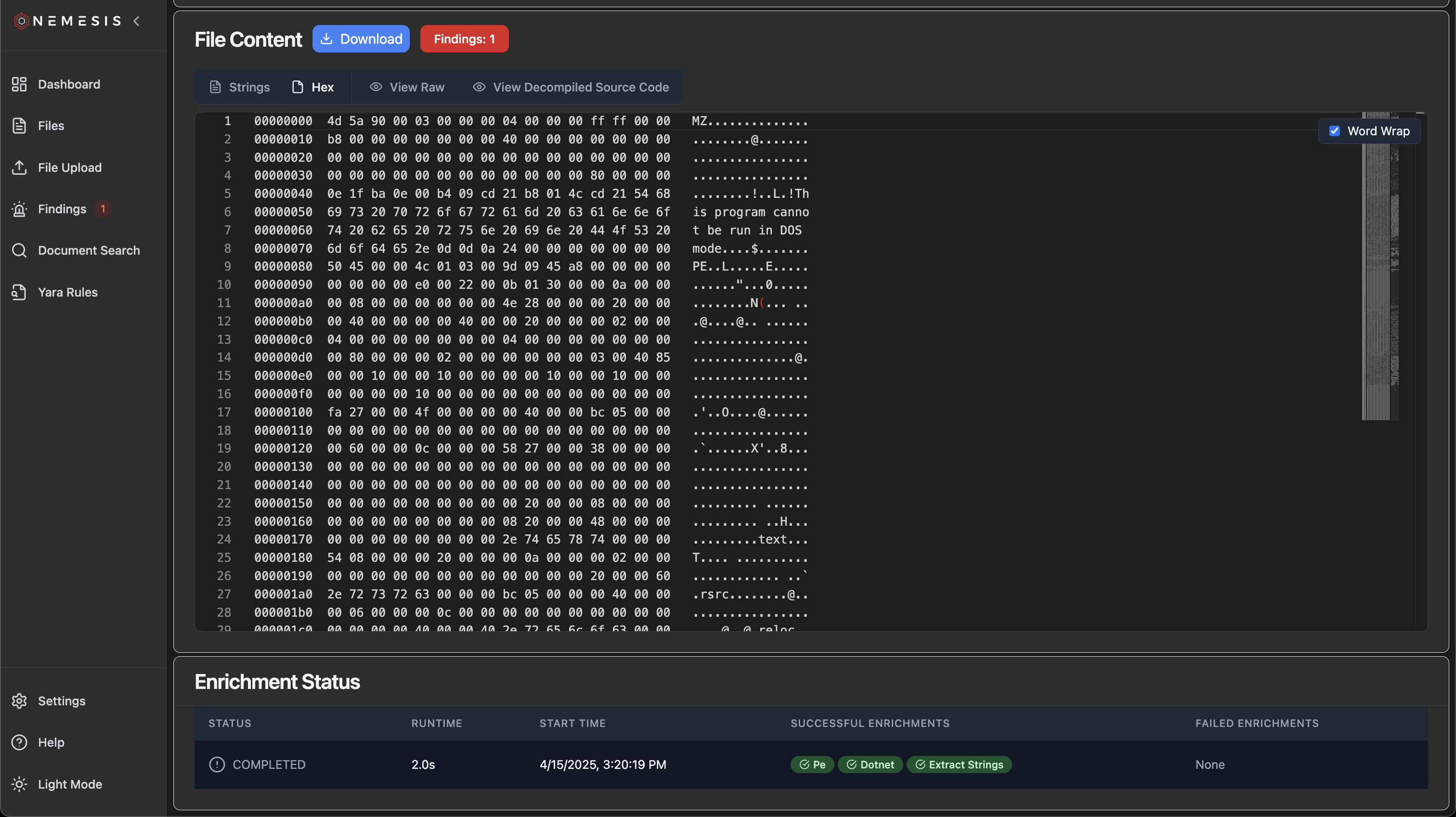
object_id UUID can help track down specific log lines).
File Tags
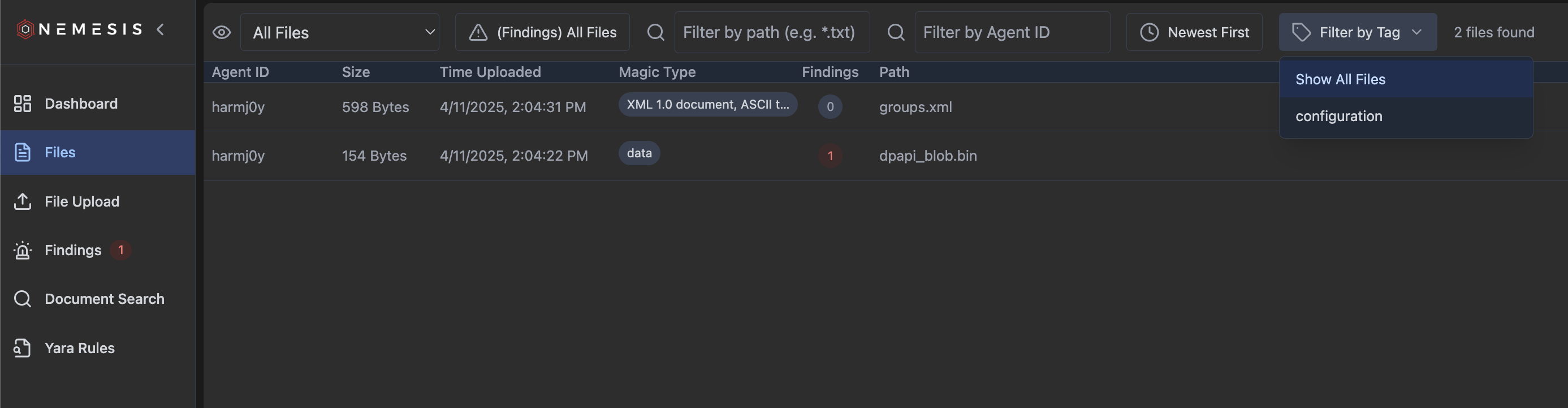
In the file details view, clicking the ”+ Add Tag” button will allow you to create new tags, or add existing defined tags, to the file: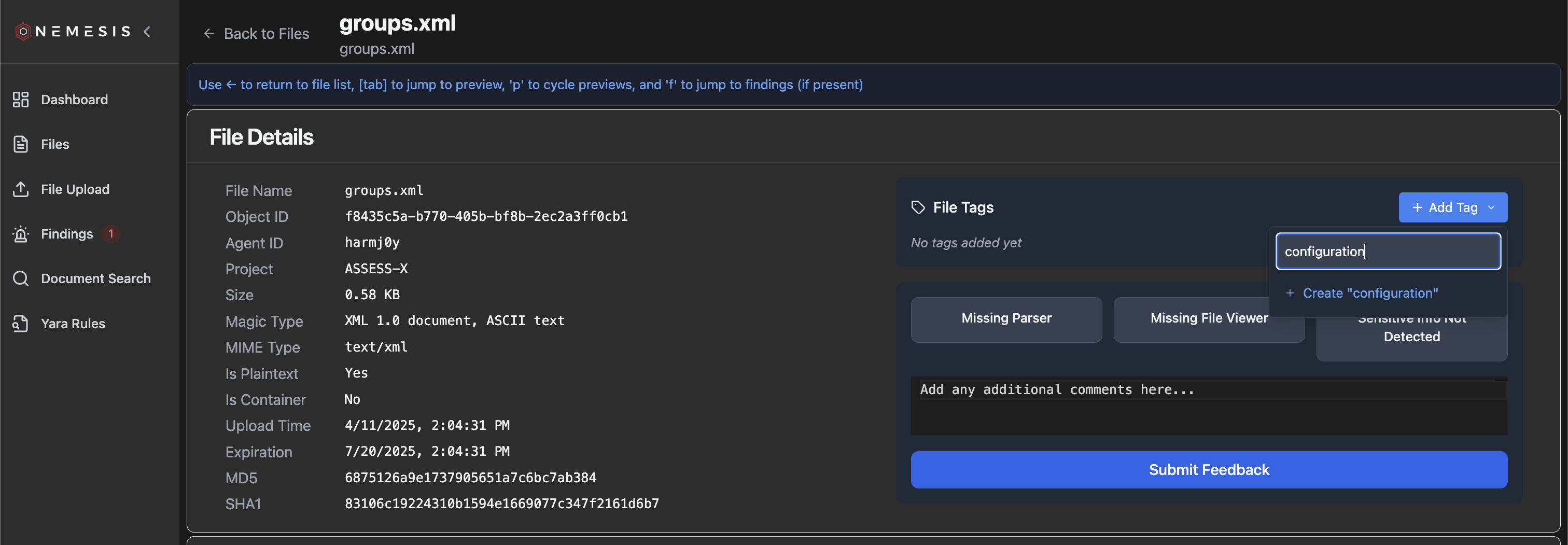
Manual File Upload
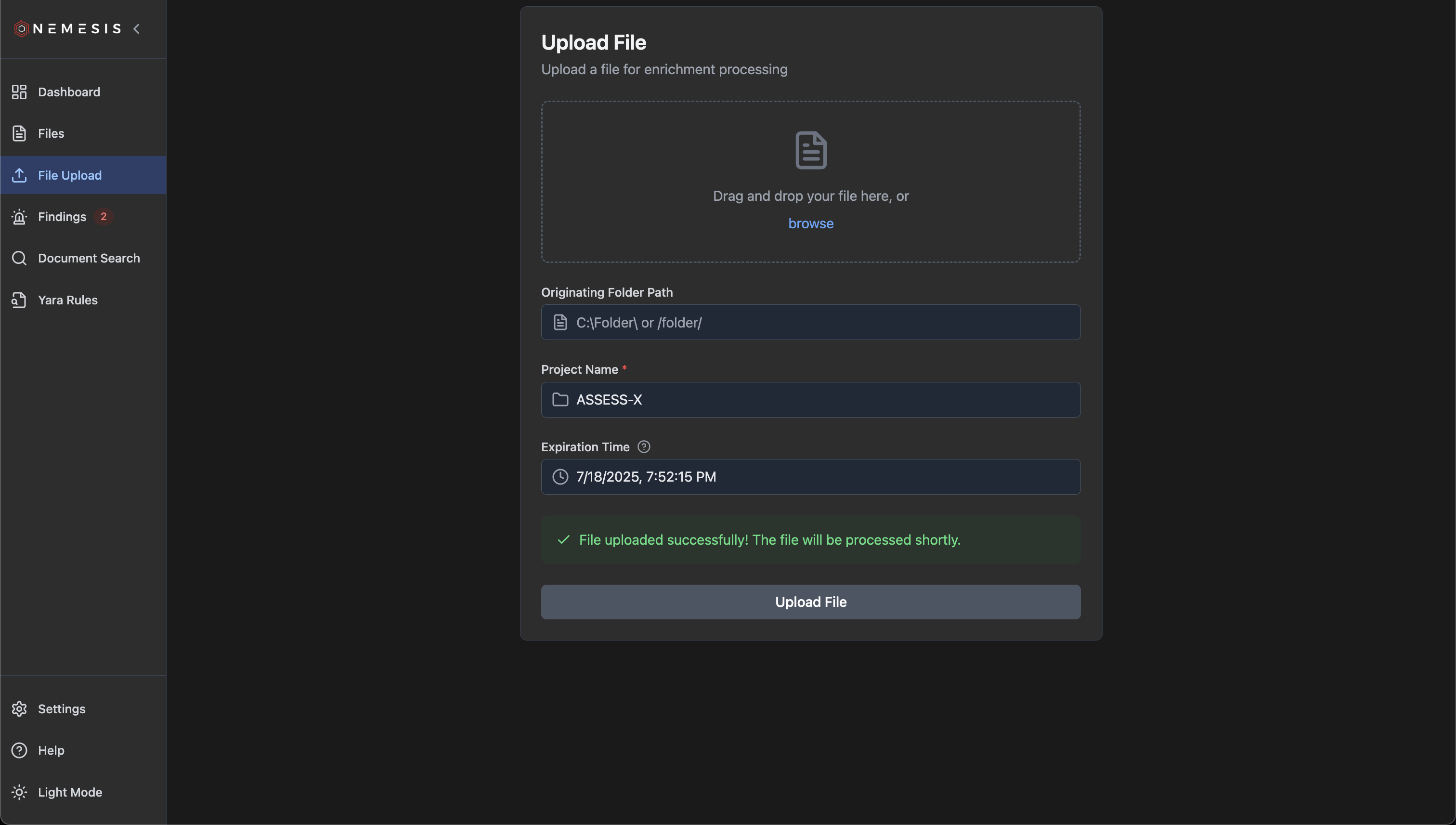
Files can be manually uploaded through the Nemesis dashboard via theFile Upload tab on the left navigation bar. The “Project Name” will be auto-completed, and the “Expiration Time” will be auto set for 100 days in the future (this can be changed in the “Settings” button on the bottom left). The “Originating File Path” is optional but recommended. Files can be dragged/dropped into the upload modal, and on successful submission Nemesis will display the following message:
Document Search
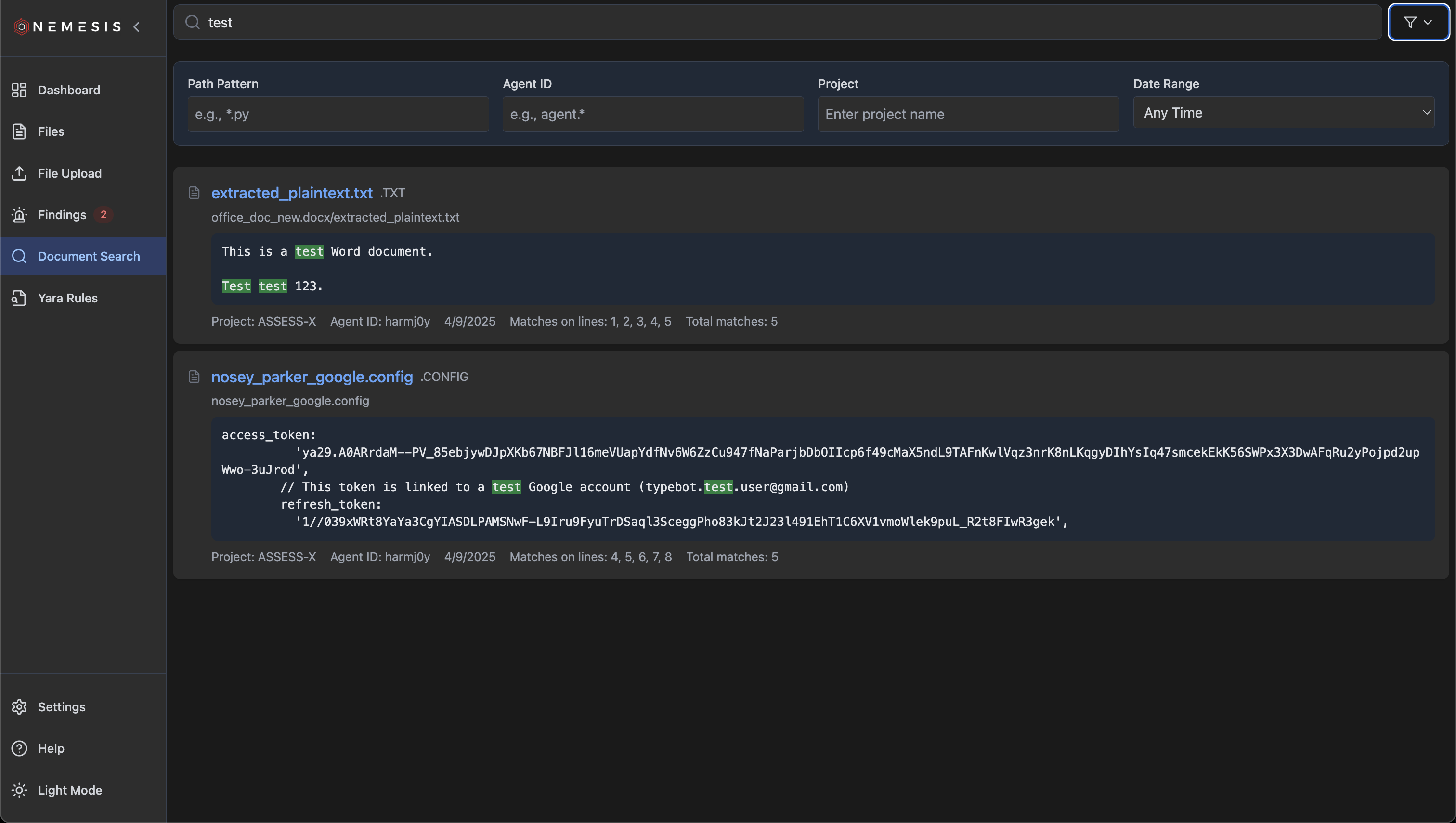
Nemesis indexes the full text of any plaintext file, or the extracted plaintext of any plaintext that can have ASCII/Unicode text extracted. This is stored in the PostgreSQL backend and searchable through this interface. Partial document matches will be shown, while clicking on the file name will take you to the file details page: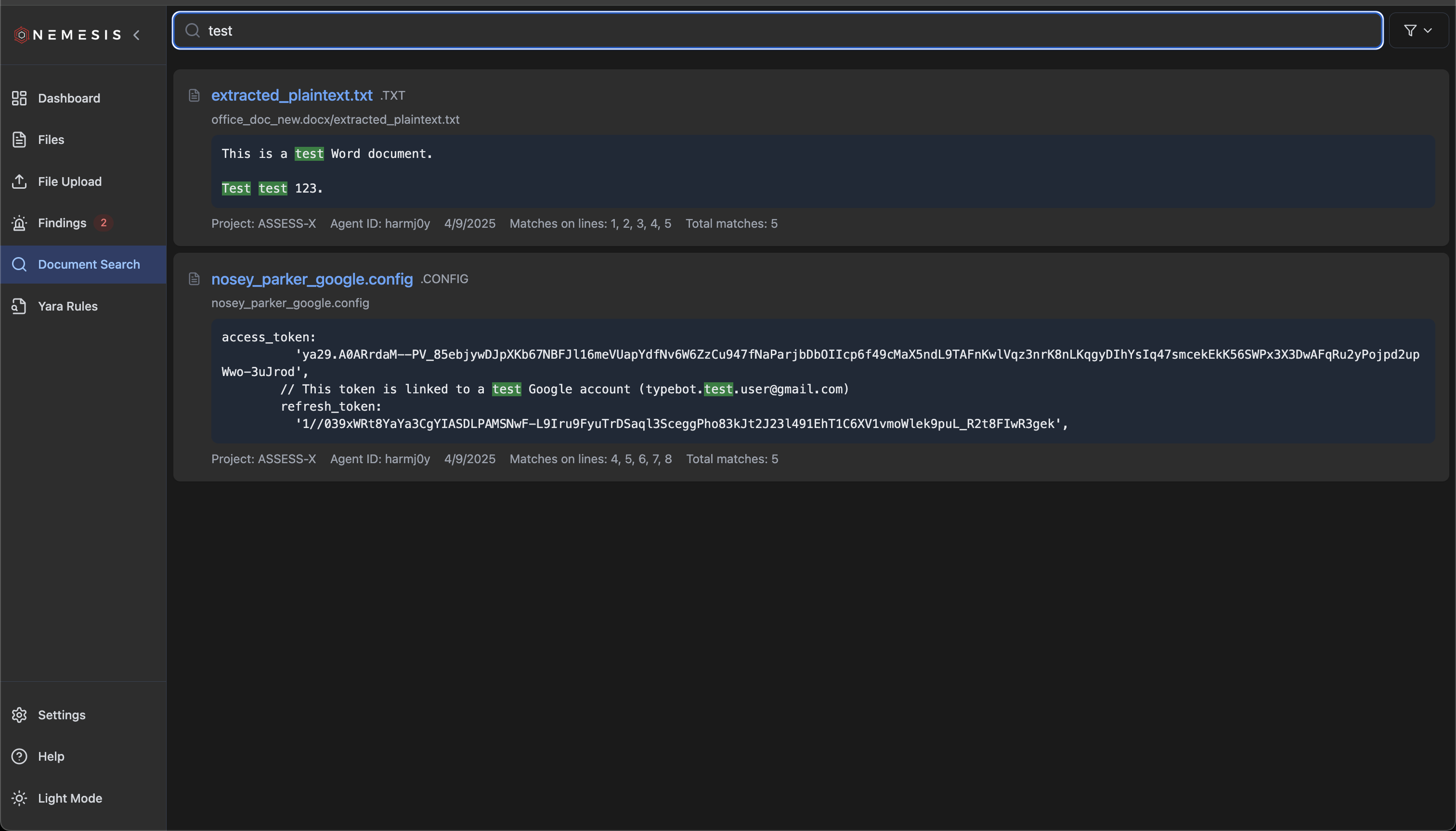
Findings
One of the other common tasks for the dashboard is findings triage, accessible through theFiles page on the left navigation bar:
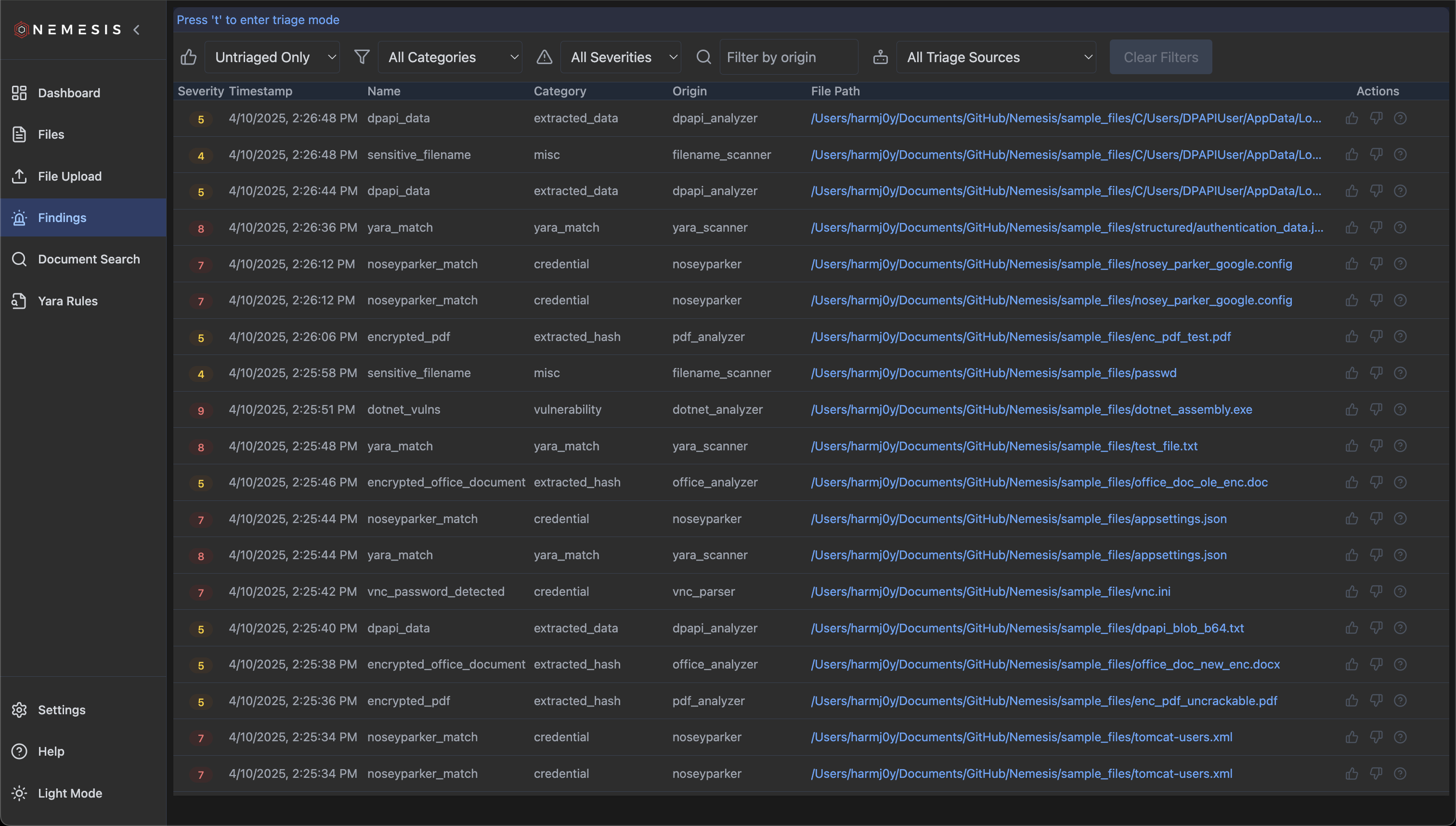
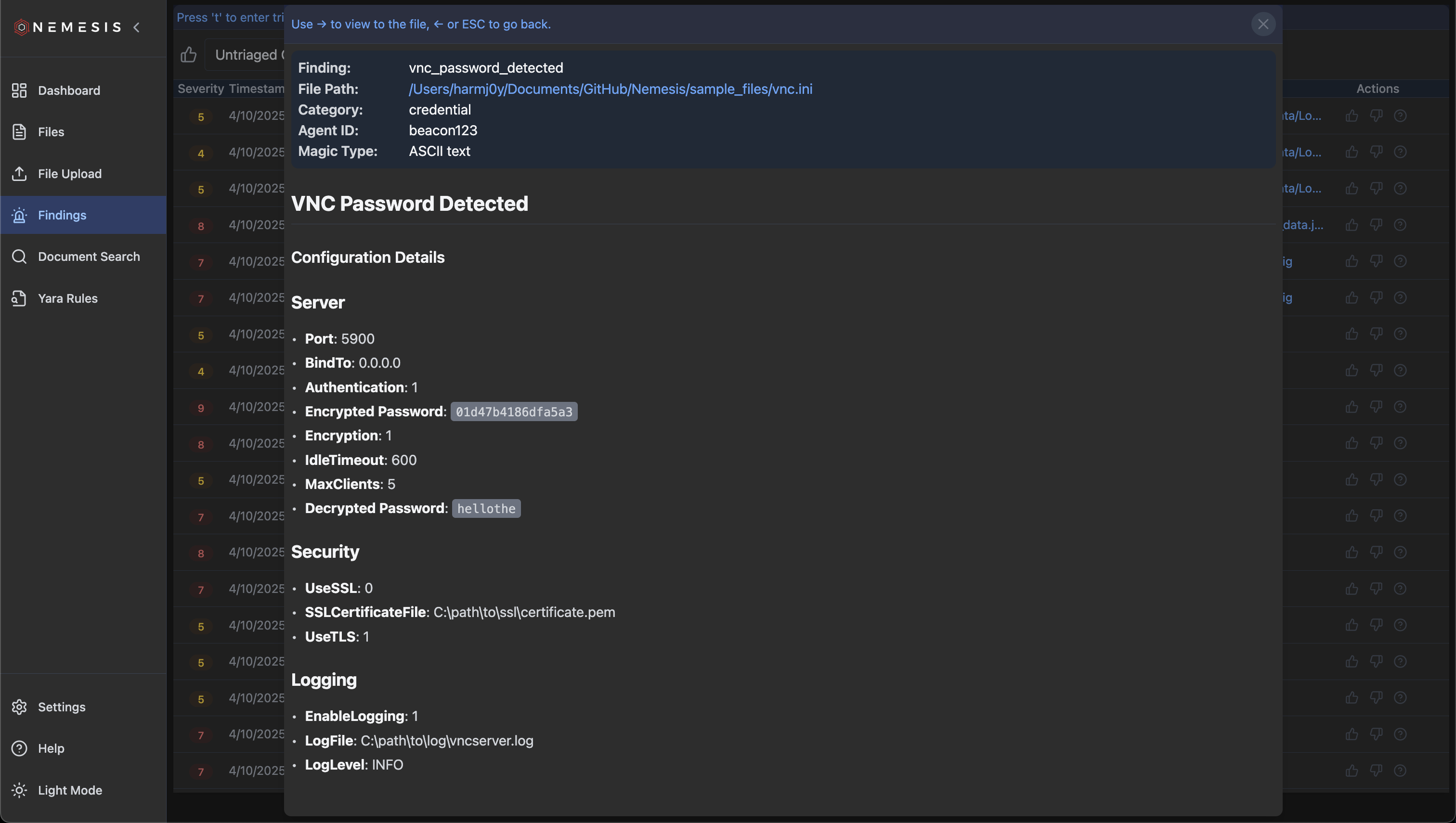
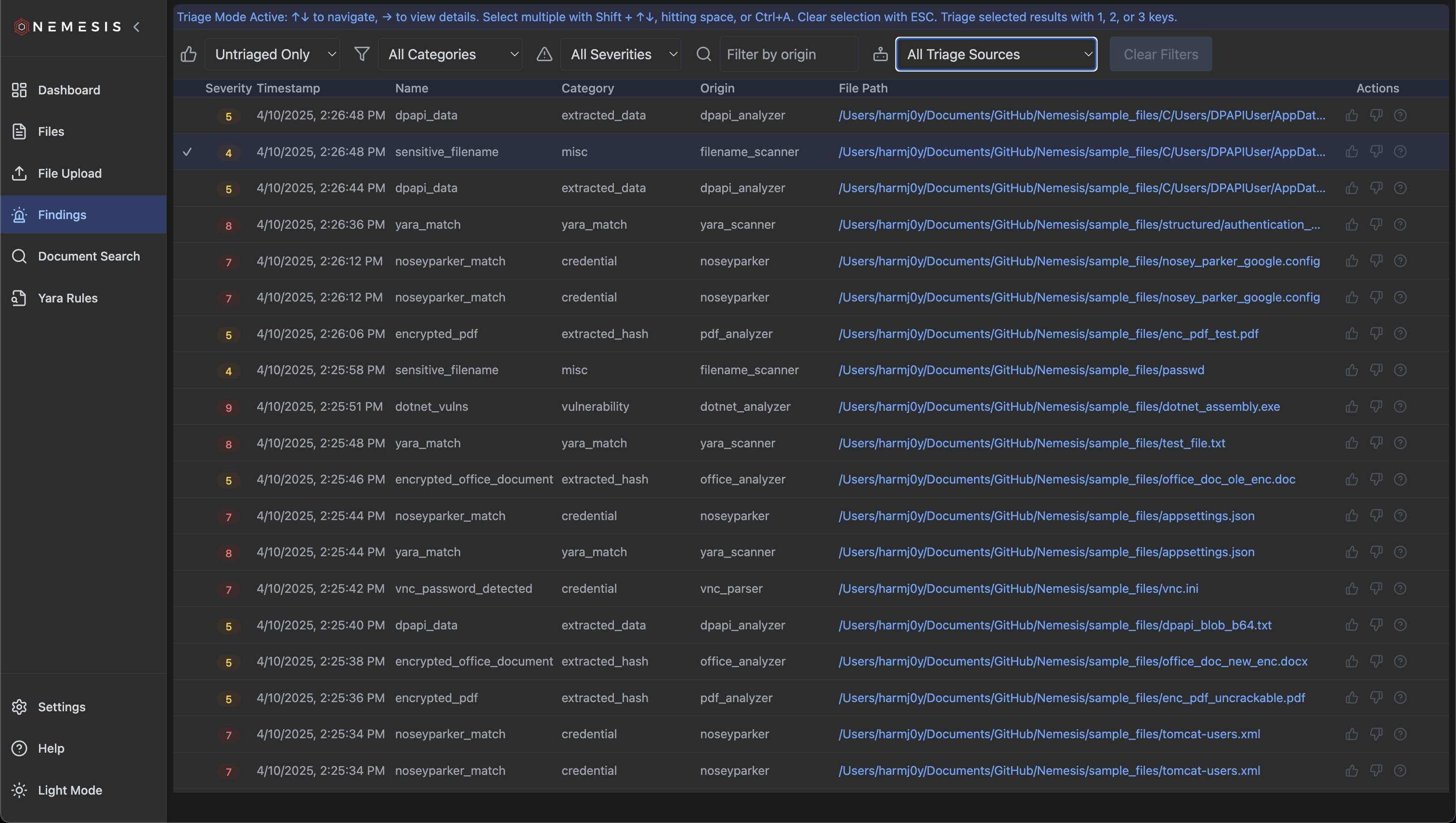
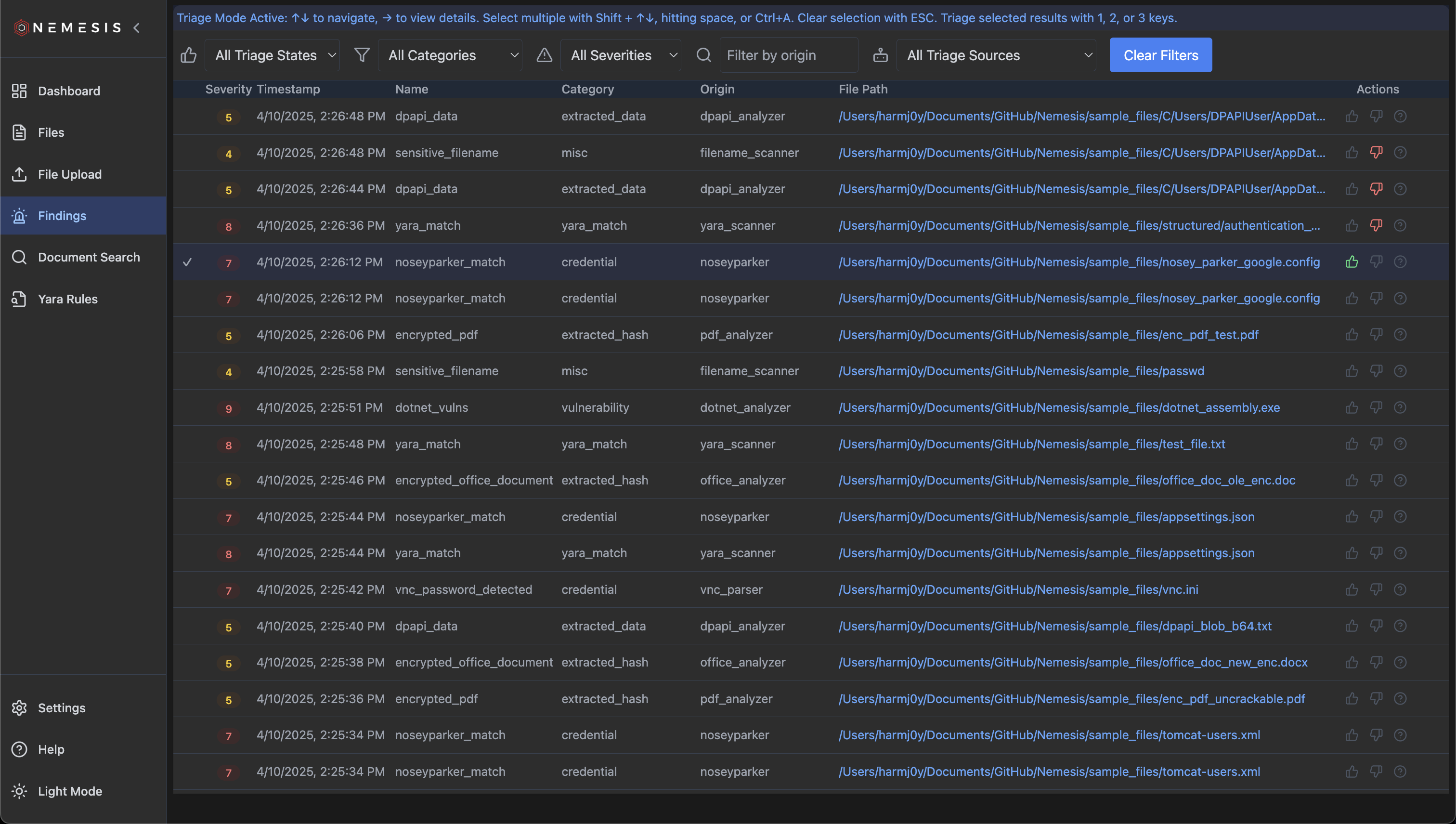
Files page, type t to enter triage mode. This will add a check box to the currently selected file along with displaying keyboard actions you can take:
Dashboard Settings
Navigating to the “Settings” menu reachable in the bottom left of the Nemesis interface will take you to the settings page: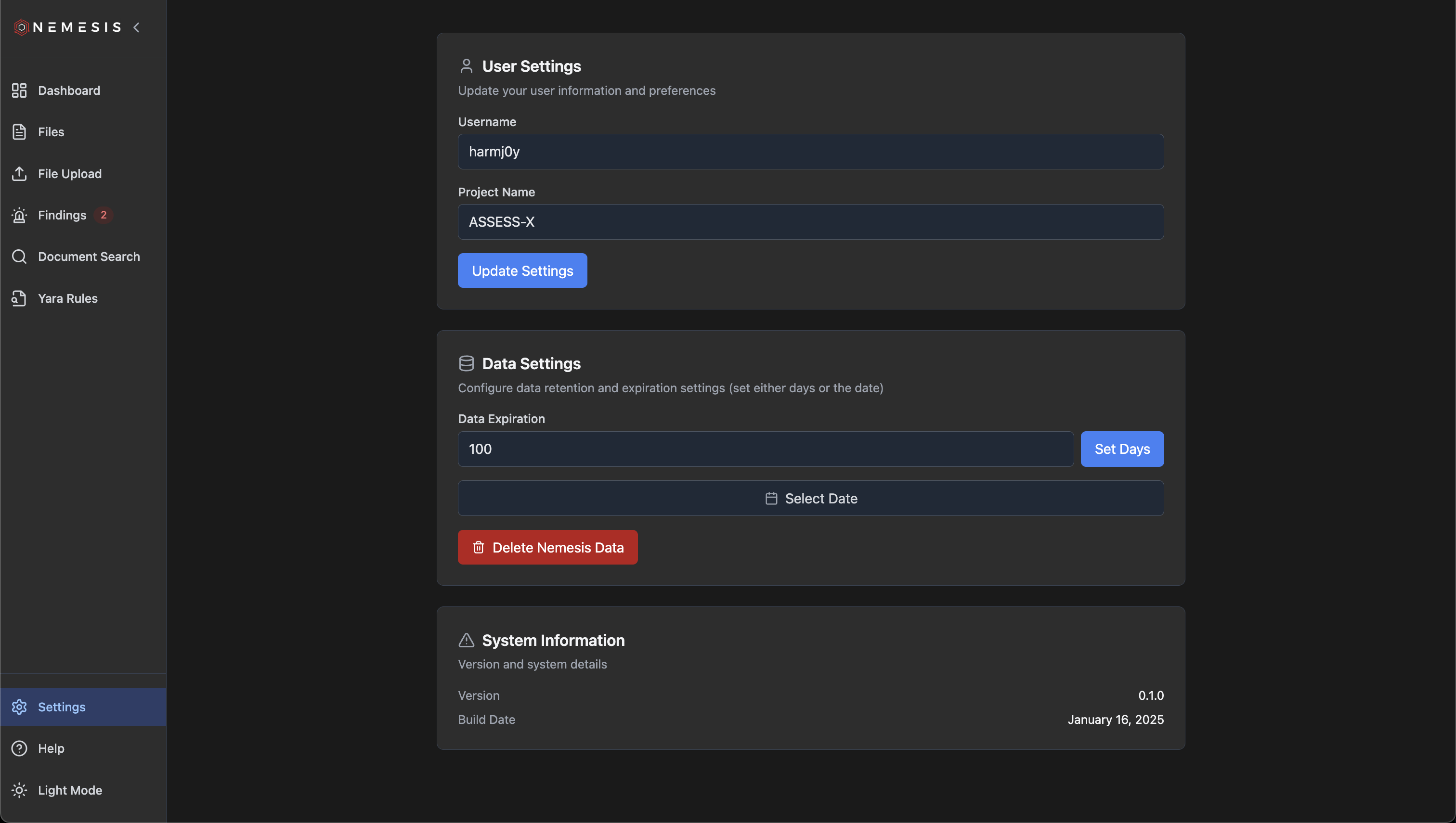
Alerting
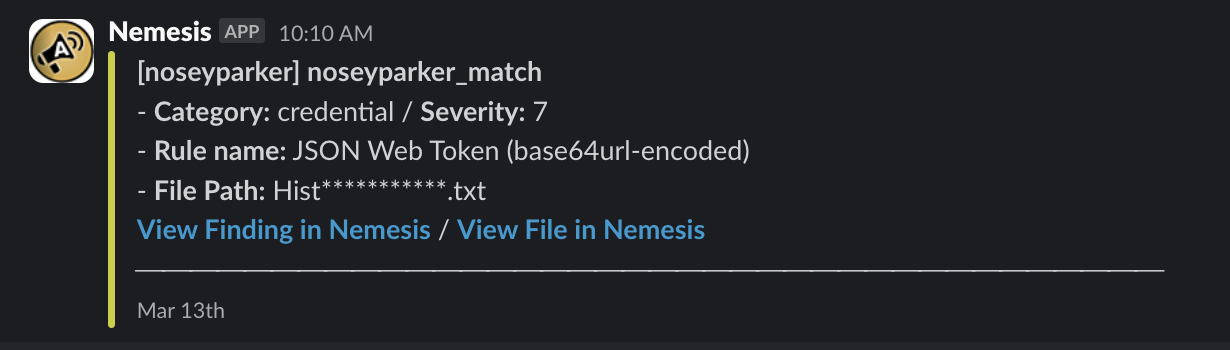
If Slack alerting is enabled (i.e., if theAPPRISE_URLS ENV variable is set), alerts on “interesting” files (e.g., parsed credentials, Nosey Parker hits, DPAPI data discovery, etc.) will be pushed to the configuered Slack webhook/channel with Nemesis as the bot user. These messages will contain the alert name, alert category, any additional details, a sanitized file path and a link to the file details and finding details in the dashboard:
User Feedback
If you want user feedback from the File Details viewer to be routed for alerting, use an Apprise link likeslack://Nemesis@T...k/#nemesis-feedback?tag=feedback - this will route user feedback actions to that specified channel, with regular alerts going to any configured channel without the feedback tag.
You can configure multiple Apprise URLs for alerting and user feedback (i.e., alerting to multiple services).
Submitting Files via the API
You can submit files using Nemesis’ssubmit CLI tool:
API Documentation
Navigating to the “Help” menu reachable in the bottom left of the Nemesis interface will show you the clickable/api/docs and /api/redoc Swagger and ReDoc API documentation, respectively: